
Prepare your 3D model.
Real size. Clear parts. Ready for the web.
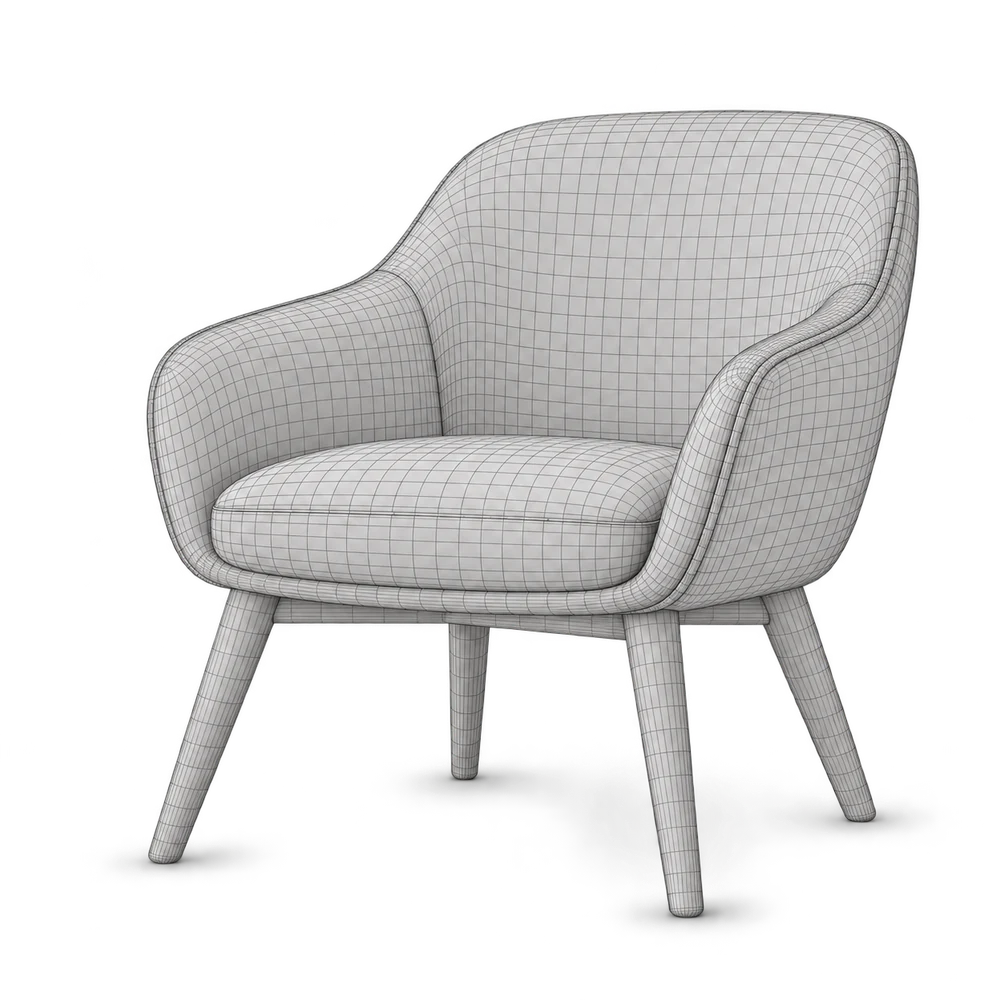
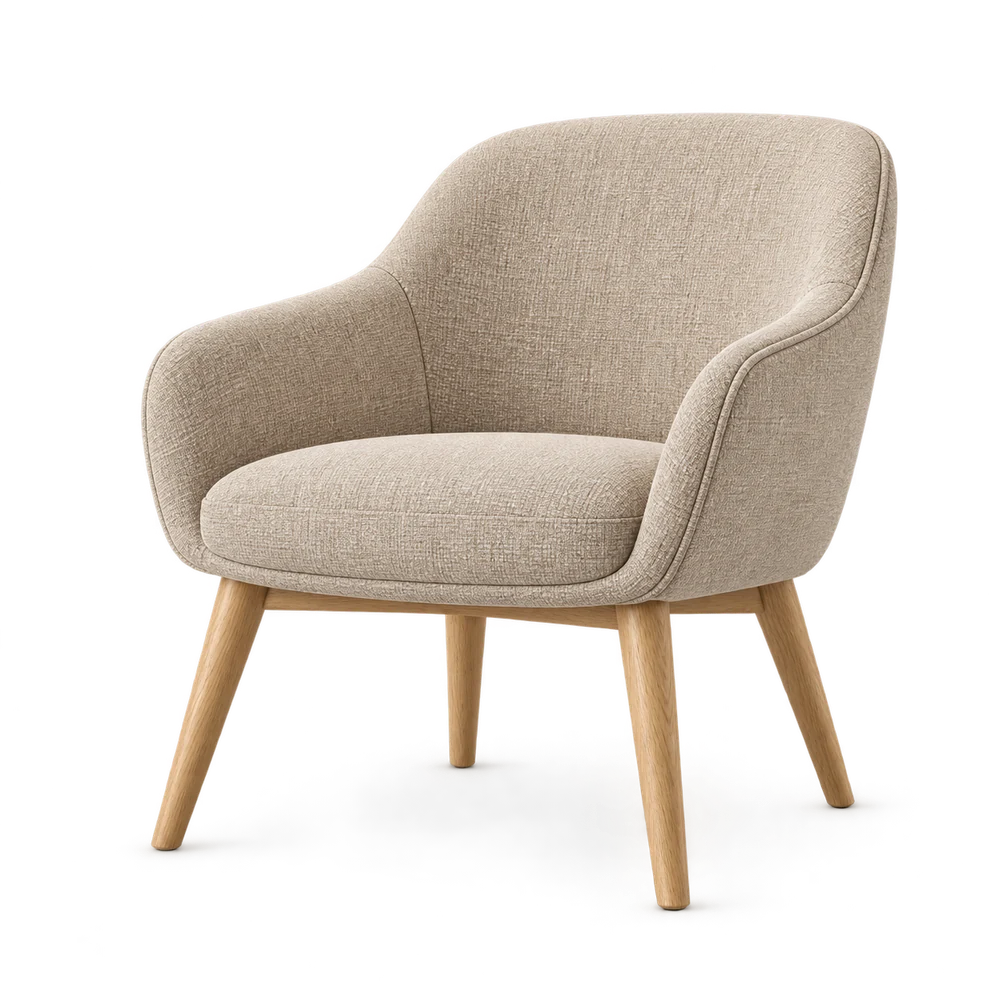
Model the real product.
Use an existing model, work with a 3D artist, or model the product in a tool such as Blender. ConfigUX configures a prepared model; it does not turn a photograph into accurate geometry.
Check real dimensions, orientation, transforms and normals. Put the origin where it makes sense for the product. Keep an editable source file.
Check size, orientation and geometry.
78 cm72 cm82 cmExample dimensions · model in real units
Separate the parts.
Name the materials.
Keep names clear, unique and stable.
A part is a piece of the model. A material controls how its surface looks.
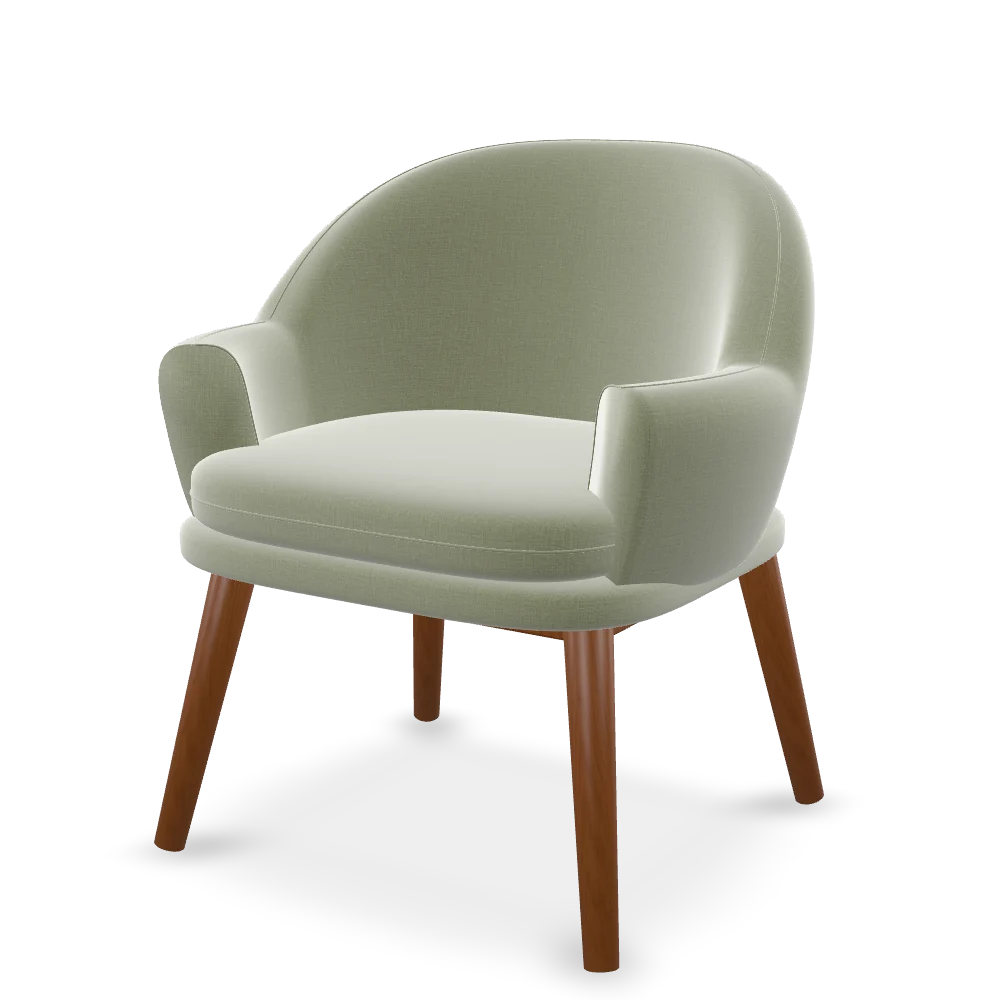
For this chair, chair_shell uses fabric_seat and legs_set uses wood_legs. Change the fabric without replacing the chair geometry.
Use stable English names, such as these. Avoid duplicate names and labels such as Object.001. Names help you inspect and connect the model; they do not guarantee automatic mapping.
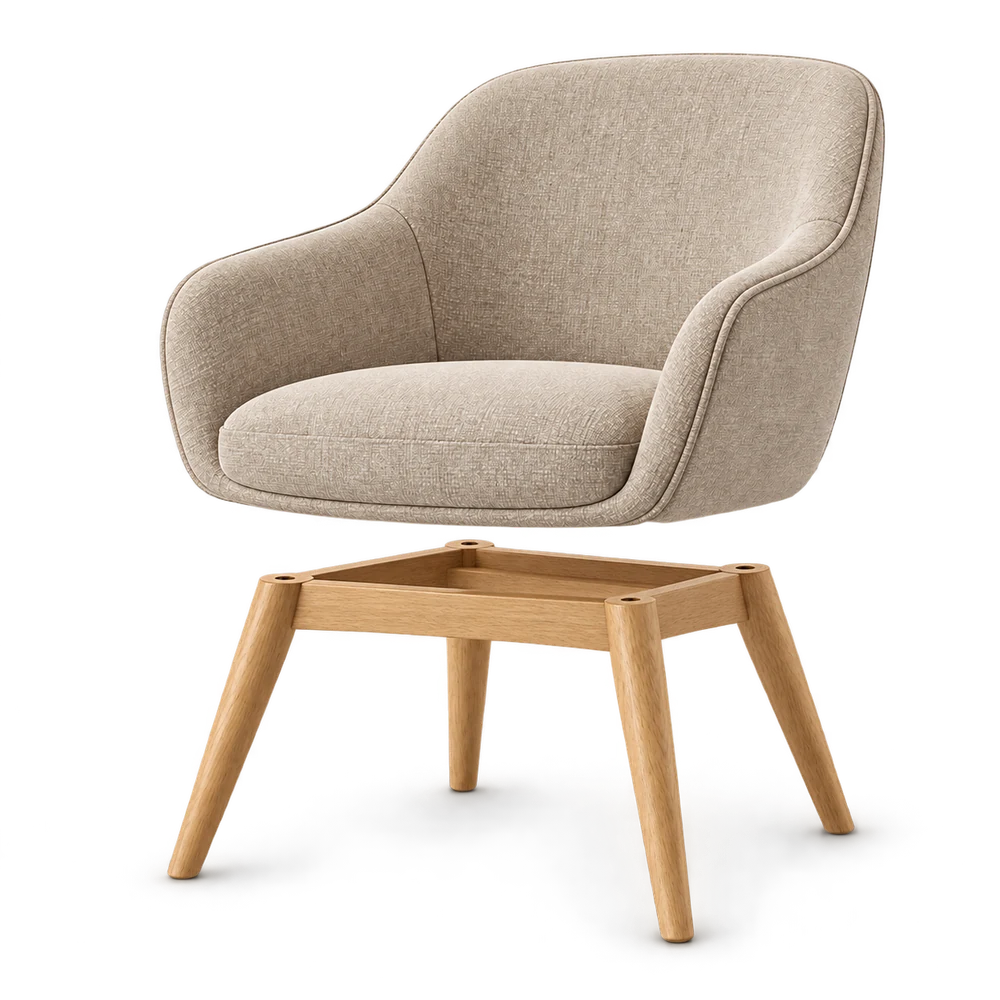
chair- ◇
chair_shell - ◇
legs_set
Export one web-ready GLB.
Keep the detail. Remove the extra weight.
- Keep the assembled model, UVs and required materials.
- Include textures inside the GLB.
- Remove unused objects and unnecessary geometry.
- Optimize geometry and texture sizes, then check the result on desktop and mobile.
- Test the exported file, not only the source scene.
There is no single polygon count or file-size budget for every product. Preserve the shape and the details the buyer needs.
✓ Textures included
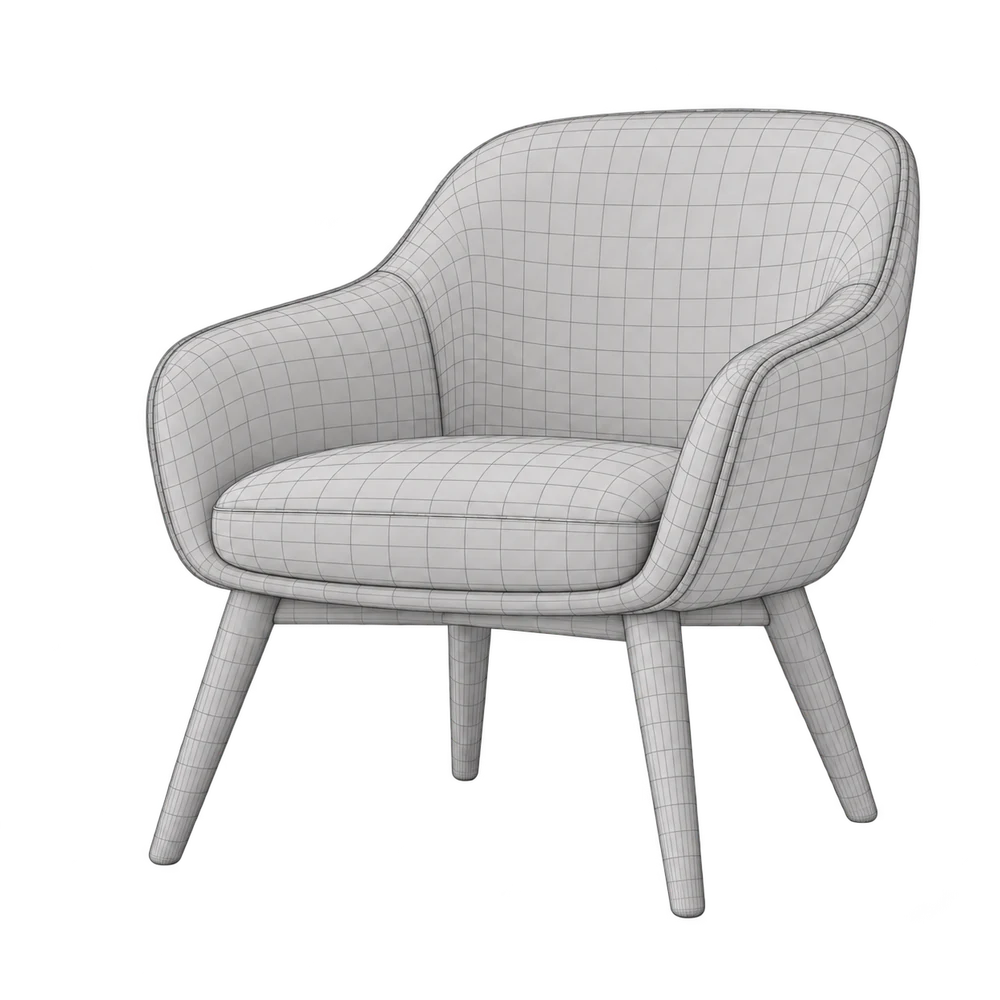
Optimization principle
Check it in ConfigUX.
In New Configurator, choose Auto Build and upload your GLB, or start with a template or blank draft. Review the draft before publishing.
Open a choice under Options, then use Model connection and Mapping to check what it changes. For a fabric change, connect the relevant model surface. Geometry alternatives need their own parts or model files.
Test every choice in Preview, including desktop, tablet and mobile. The example below is a real, rotatable GLB with four material variants. Its Options interface illustrates the workflow; it does not create a Studio draft or save account connections.
Review the connections. Try every choice.
Sand
chair_shellUpholstery changes. Legs stay Oak.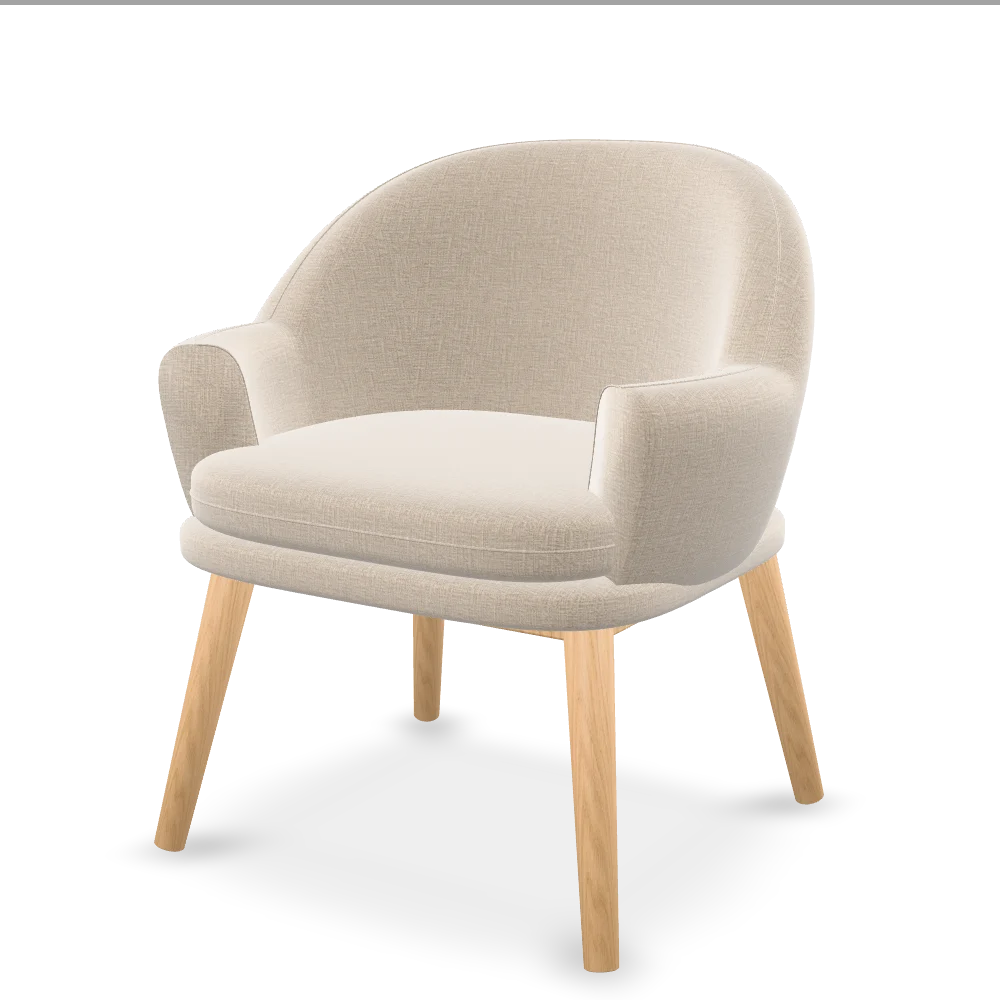 Loading 3D…
Drag to rotate · Try the surface choices
Start with a sample model.
Download the original GLB and inspect chair_shell, legs_set and their materials. Both textures and all four material variants are embedded.
Download the same GLB shown in the rotating example. It includes Sand + Oak, Sand + Walnut, Olive + Oak and Olive + Walnut as named material variants. The default is Sand + Oak. It is an original training model under CC0, not manufacturer CAD or a ready-made ConfigUX draft. The pictures earlier in this guide are illustrations.
The model you just tried. All four combinations.
1.1 MB